Common Ubuntu Packages & Installation Guides

This guide covers essential Ubuntu packages and installation methods, including system updates, browsers, utilities, messaging apps, remote desktop tools, and development environments. It provides step-by-step installation for Docker, VS Code, and MongoDB Compass. Follow these instructions to optimize your Ubuntu setup for work, development, and daily use.
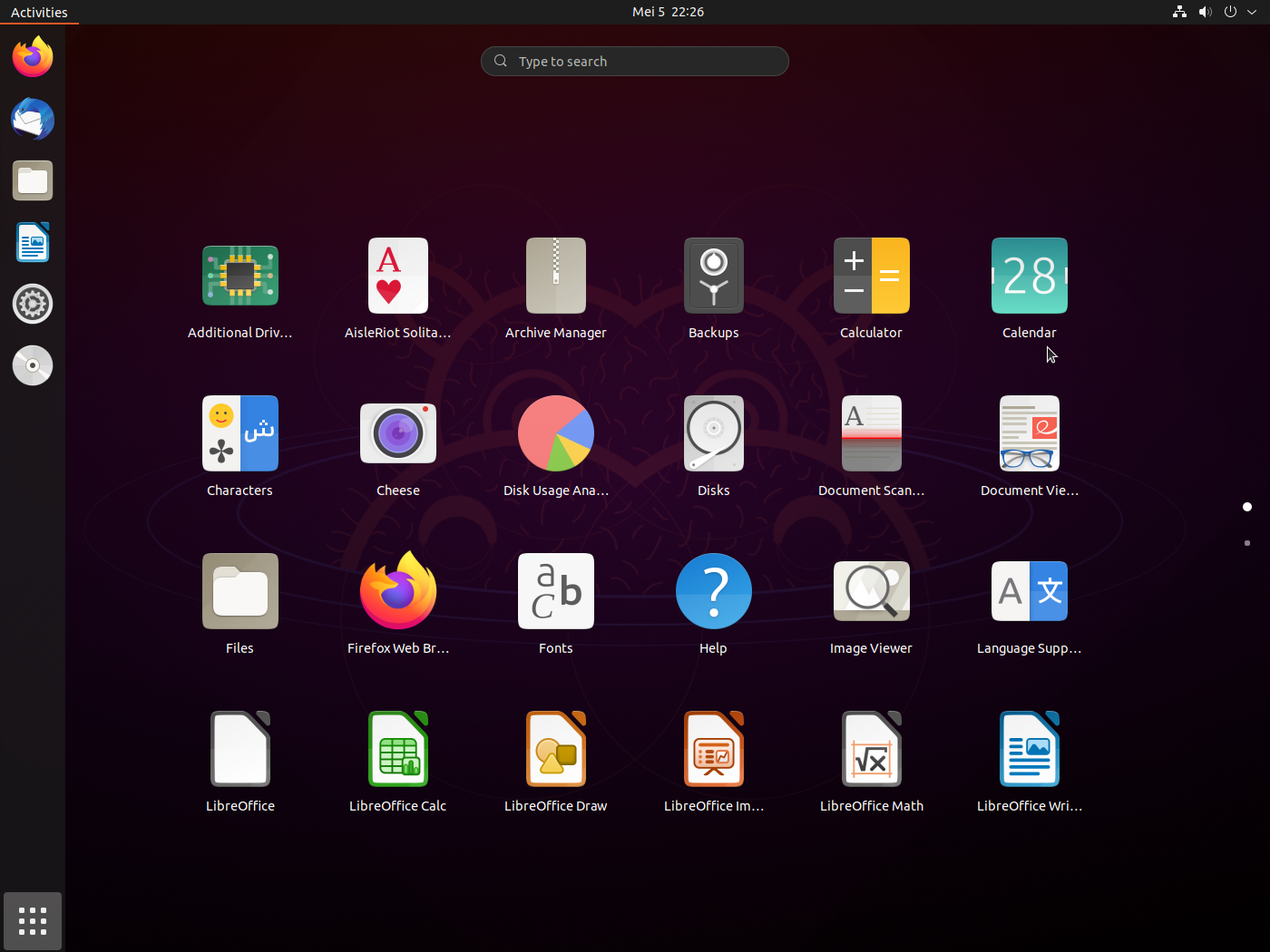
Initial Setup
Update & Upgrade Your System
It’s always a good idea to start by making sure your system is up to date. Run the following commands:
sudo apt update && sudo apt upgrade -y
Install Required Packages
Install the essential packages that you’ll need:
sudo apt install python3 git curl wget -y
Packages not available with apt
Browsers
If you prefer browsers like Google Chrome or Brave, you can install them without relying on snap.
- Google Chrome
wget "https://dl.google.com/linux/direct/google-chrome-stable_current_amd64.deb" -O "google-chrome-stable_current_amd64.deb" && sudo dpkg -i ./google-chrome-stable_current_amd64.deb && sudo apt install --fix-broken -y
- Brave Browser
sudo curl -fsSLo /usr/share/keyrings/brave-browser-archive-keyring.gpg https://brave-browser-apt-release.s3.brave.com/brave-browser-archive-keyring.gpg && echo "deb [signed-by=/usr/share/keyrings/brave-browser-archive-keyring.gpg arch=amd64] https://brave-browser-apt-release.s3.brave.com/ stable main" | sudo tee /etc/apt/sources.list.d/brave-browser-release.list && sudo apt update && sudo apt install brave-browser -y
Utilities
Most of the utilities I use can be easily installed with apt. For example, Spotify, Stacer (for system monitoring), Bitwarden (password manager), and messaging apps like Telegram and Discord can all be installed with just a few commands.
- Spotify
curl -sS https://download.spotify.com/debian/pubkey_5E3C45D7B312C643.gpg | sudo apt-key add - && echo "deb http://repository.spotify.com stable non-free" | sudo tee /etc/apt/sources.list.d/spotify.list && sudo apt-get update && sudo apt-get install spotify-client -y
- Stacer (System Monitor)
wget "https://github.com/oguzhaninan/Stacer/releases/download/v1.1.0/stacer_1.1.0_amd64.deb" -O "stacer_1.1.0_amd64.deb" && sudo dpkg -i ./stacer_1.1.0_amd64.deb && sudo apt install --fix-broken -y
Messaging Apps
- Telegram Desktop
sudo add-apt-repository ppa:atareao/telegram && sudo apt update && sudo apt install telegram -y
- Discord
wget "https://discord.com/api/download?platform=linux&format=deb" -O "discord.deb" && sudo dpkg -i ./discord.deb && sudo apt install --fix-broken -y
Step 4: Remote Desktop Setup
If you need to access other systems remotely, tools like TeamViewer and AnyDesk can help you set up remote access.
- TeamViewer
wget "https://download.teamviewer.com/download/linux/teamviewer_amd64.deb" -O "teamviewer_amd64.deb" && sudo dpkg -i ./teamviewer_amd64.deb && sudo apt install --fix-broken -y
- AnyDesk
wget -qO - https://keys.anydesk.com/repos/DEB-GPG-KEY | sudo apt-key add - && echo "deb http://deb.anydesk.com/ all main" | sudo tee /etc/apt/sources.list.d/anydesk-stable.list && sudo apt update && sudo apt install anydesk -y
Step 5: Development Tools
For developers, setting up tools like Docker, GitHub Desktop, and Visual Studio Code is essential. Here’s how you can set them up:
- Docker
Start by removing any old versions of Docker, then install the latest stable version:
sudo apt-get remove docker docker-engine docker.io containerd runc -y
sudo apt-get update && sudo apt-get install ca-certificates curl gnupg lsb-release -y
Then, proceed with the Docker installation:
sudo mkdir -p /etc/apt/keyrings
curl -fsSL https://download.docker.com/linux/ubuntu/gpg | sudo gpg --dearmor -o /etc/apt/keyrings/docker.gpg
echo "deb [arch=$(dpkg --print-architecture) signed-by=/etc/apt/keyrings/docker.gpg] https://download.docker.com/linux/ubuntu $(lsb_release -cs) stable" | sudo tee /etc/apt/sources.list.d/docker.list > /dev/null
sudo apt-get update
sudo apt-get install docker-ce docker-ce-cli containerd.io docker-compose-plugin docker-compose -y
- Visual Studio Code
sudo apt-get install wget gpg && wget -qO- https://packages.microsoft.com/keys/microsoft.asc | gpg --dearmor > packages.microsoft.gpg
sudo install -o root -g root -m 644 packages.microsoft.gpg /etc/apt/trusted.gpg.d/
Then add the repository and install:
sudo sh -c 'echo "deb [arch=amd64,arm64,armhf signed-by=/etc/apt/trusted.gpg.d/packages.microsoft.gpg] https://packages.microsoft.com/repos/code stable main" > /etc/apt/sources.list.d/vscode.list'
rm -f packages.microsoft.gpg
sudo apt install apt-transport-https -y && sudo apt update
sudo apt install code -y
Step 6: More Development Tools
- MongoDB Compass
wget "https://downloads.mongodb.com/compass/mongodb-compass_1.35.0_amd64.deb" -o "mongodb-compass_1.35.0_amd64.deb" && sudo dpkg -i ./mongodb-compass_1.35.0_amd64.deb && sudo apt install --fix-broken -y
With all these tools and applications installed, your Ubuntu setup should be fully functional and ready for both work and play.
Final Thoughts
Ubuntu is a powerful and flexible operating system. With the right setup, it can handle everything from basic desktop tasks to development and system administration. Whether you choose to use the auto-setup script or go through the manual process, this guide should help you get started with the essentials.